
Creator’s
Guide
Chordwalk Creator’s Guide & Manual
Use the AI-enabled Search Functionality to find what you need quickly.
Featured








Use the AI-enabled Search Functionality to find what you need quickly.
ChordWalk, based on US Patent 10614786 (April 7, 2020) and improvement application PTIE20220000000449, is a versatile software for Windows, Mac, iPad, and iPhone. It simplifies music composition and performance, catering to users from beginners to advanced musicians, regardless of their music theory knowledge.
ChordWalk is not a DAW (Digital Audio Workstation). Instead, it sends MIDI data streams to a locally running DAW, an externally connected device with a DAW, or any MIDI device capable of playing MIDI instrument sounds. ChordWalk can also play locally installed SoundFonts.
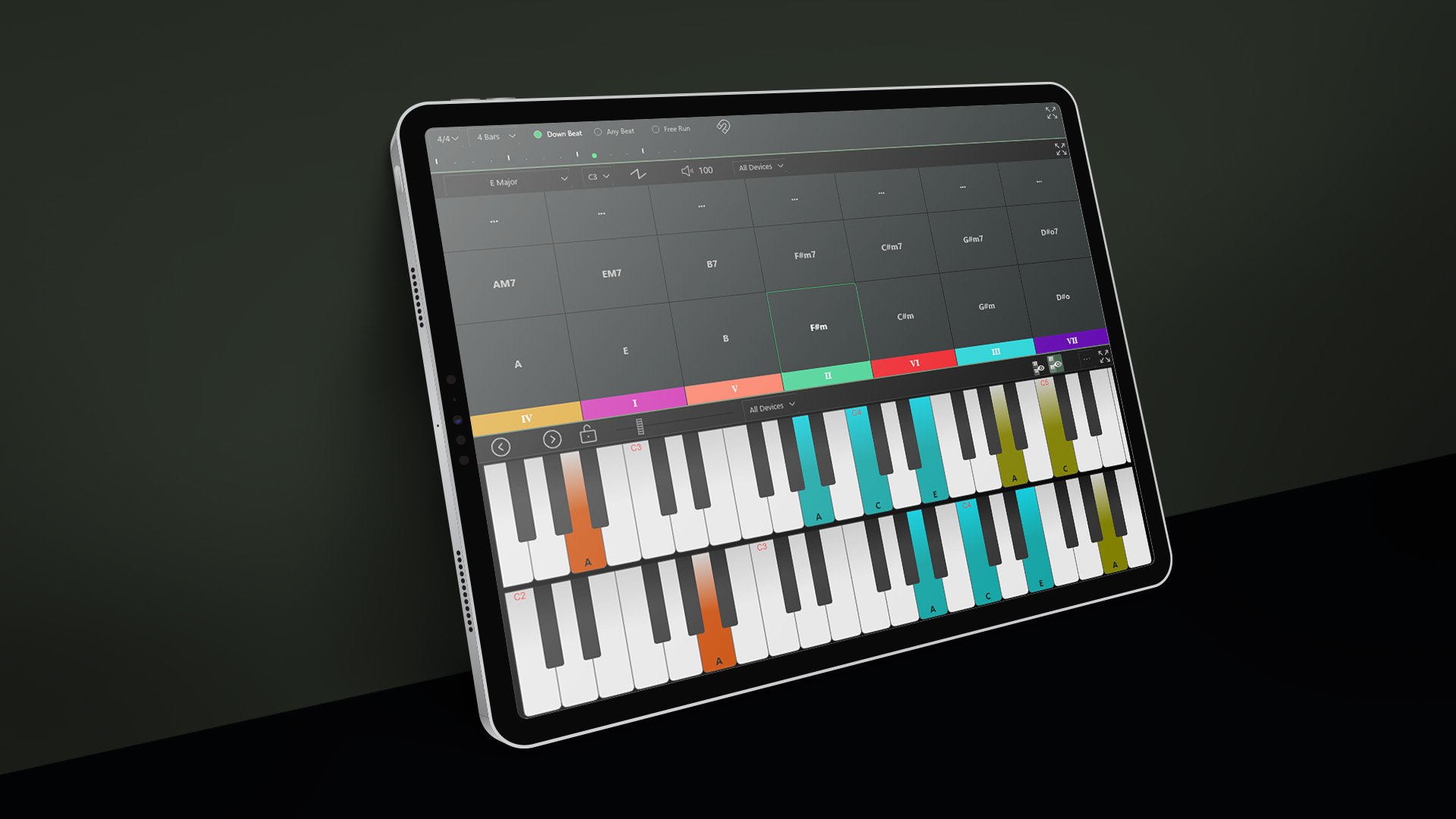
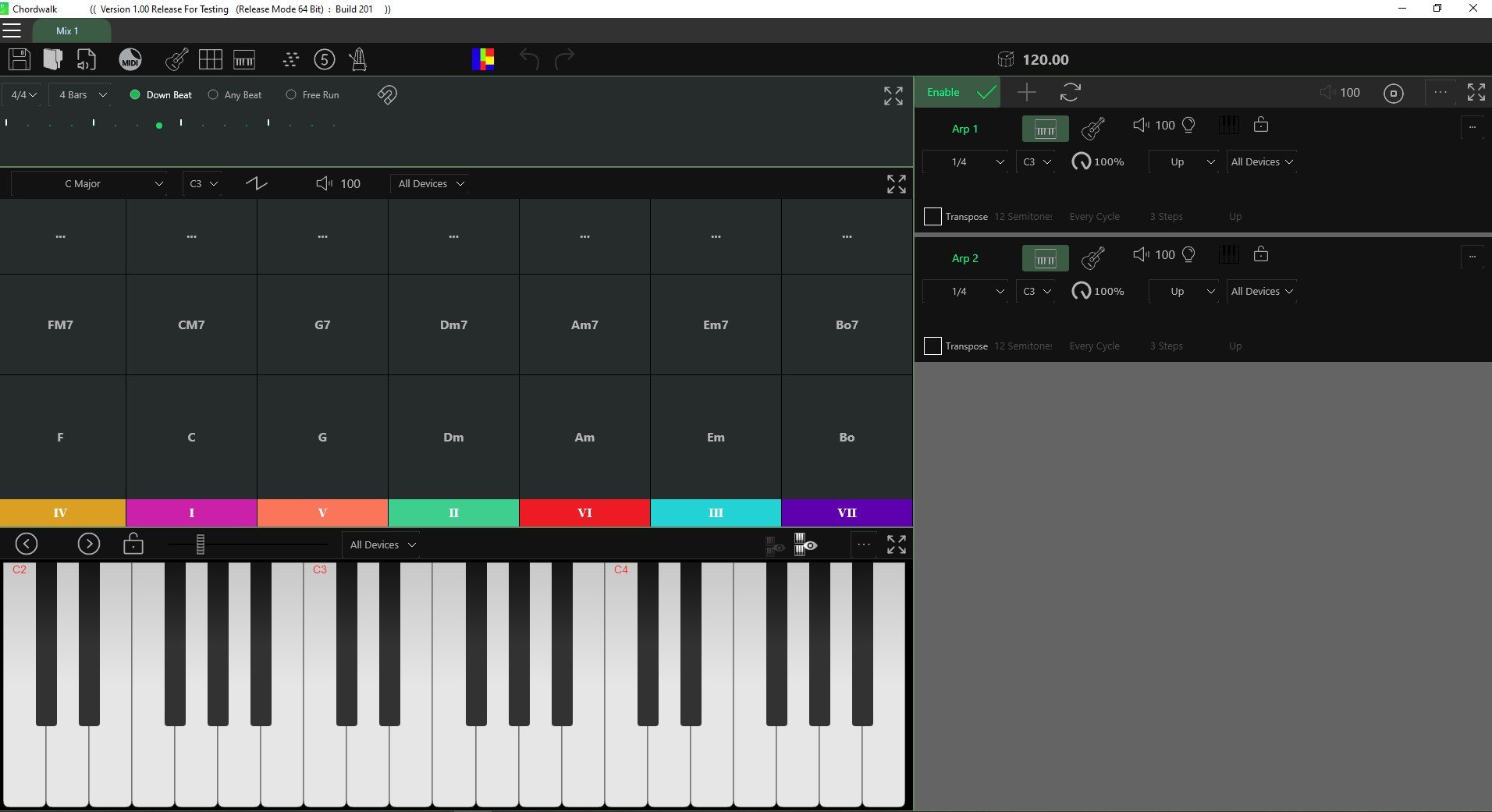
The default creation screen displays a Chord Selection area, a virtual instrument playing area, two Arpeggiator areas, and a Metronome and beat syncing area.
When you are running ChordWalk with a DAW on an iPad, and you are toggling between the applications, you must have ChordWalk, and the DAW set to “Run in background” mode for the DAW to continue playing with ChordWalk running in the background.
Click the “Add New Tab” icon (the plus sign) to add a new creation tab. This allows you to toggle between multiple tabs, enhancing your creative workflow efficiency.
To resize a Dialogue Box, hold one finger at the top of the Box, and with another finger, grab the bottom extremity of the Box and move it up/down/across to resize the Box view.
ChordWalk provides a "Screen Configuration" option that enlarges borders, making it easier to resize individual views precisely on touch devices.
ChordWalk can also play locally installed SoundFonts. The guide provides detailed instructions for connecting to DAWs and external devices and installing SoundFonts.
MIDI allows ChordWalk to control multiple instruments by sending musical instructions instead of audio.
By using MIDI channels and ports, each musical part can be routed independently, keeping complex arrangements organised and predictable.
Understanding MIDI channels is essential for organising instruments, avoiding conflicts, and creating clean, predictable musical performances.
A MIDI Channel Conflict occurs when two or more MIDI sources send the same or different MIDI data at the same time.
A great hook is formed by combining some of the elements shown below. Every composition must have rhythm, Which underpins all great music compositions.
Most songs have some formal structure: intro, verse, and chorus, which is repeated over and over and finished with an outro. Other structures can include a bridge between the two main components. The bridge is often an instrumental solo or a piece of vocal improvisation.
Depending on the music genre, audience, activity, or environment, you can set the appropriate beat rate in the Tempo Box,
The selected Tempo is represented as a beat indicator scrolling across the bars to advise the Creator of their exact position in the composition structure in real-time. It is also important for the creator/performer to know where the beat is relative to the downbeat. The ChordWalk Metronome advises the current beat position relative to bar number and downbeat position.
On installation, the Metronome defaults to display four bars in the most popular time signature of 4/4 time, also known as Common Time.
In the Metronome area, you can set the number of bars to display for the different sections of your creation from a drop-down menu.
A time signature is represented by two numbers, one above the other. The time signature tells us how notes are grouped together in a composition. The top number tells us the number of notes that are grouped in a bar. The bottom number tells us the type of notes (note quality) in the group.
In ChordWalk, note values, called Steps, are essential for creating arpeggios and can include Rests (silences). ChordWalk’s arpeggiator lets you mix note values to create varied and complex melodies and harmonies.
Gate settings in ChordWalk control how long each note or rest (step) is played. Common note values, like half notes, quarter notes, dotted notes, and triplets, have specific lengths in beats. You can adjust these lengths using Gate Settings to change the feel of your music, such as making notes short and clipped for staccato effects.
To ensure accurate chord changes on the downbeat or on the beat, ChordWalk offers a Sync option. Select Sync to Downbeat or to any Beat, and ChordWalk will automatically synchronise chord changes to occur on that selection.
In the default setting, chord positions are shown in their ascending scale degree positions with Roman numeral indicators. You can display the chord positions in a Circle of Fifths profile by selecting the “Circle of Fifths” icon.
As a default, ChordWalk’ presents a piano instrument view with the “C” major key selected. Any Key position on the Piano Keyboard Image will play the note that corresponds to that key position. There is an option to select a guitar instrument view.
ChordWalk displays the triad chords for a selected key on the bottom row of the Chord Matrix Panel in their scale degree positions labelled with Roman numerals. Select a Chord sector, and your selected DAW instrument will play the notes of that Chord.
The seventh chord is just the basic triad chord with a fourth note added. Seventh chords are displayed in the middle column of the Chord Selection Matrix in their scale degree positions. Seventh chords have the number “7” affixed to their chord name.
Many modern composers have expanded the creative boundaries and introduced chords that include notes that are not contained within a single key. These chords are called “borrowed chords” as they contain notes that are borrowed temporarily from another key.
To start a new composition, open a new tab and select a key or key combination using the Key Selection icon. A drop-down menu displays the key options. Select the desired key, mode or key combination.
You can save your creation settings using the Save Creation Settings icon as shown below. Remember to label the saved settings in a file with a name that is related to the creation to quickly retrieve it for later use in another project.
Chords can also be selected using your Qwerty keyboard. The assignments are shown here.
A guitar-stringed instrument view is presented when the Guitar icon is selected. As with the Piano view, select a creation tab, a music key and an octave range, and you are ready to start playing notes by activating the virtual strings.