

Adding Play Patterns to Individual Notes Level 3
We will now explore the advanced controls and settings for individual notes within an Arpeggiator. Click the expand icon next to the note area labeled “Note Pattern Settings.”

Arpeggio Rhythmic Pattern Sequencer Level 3
The Pattern Sequencer enables you to arrange and customize individual notes of a chord into rhythmic patterns and sequences for arpeggiation. You can adjust the controls and settings of these individual note patterns and sequences in real-time.

Seventh Chord Arpeggios
A seventh chord arpeggio plays the individual notes of a seventh chord in a sequential pattern.
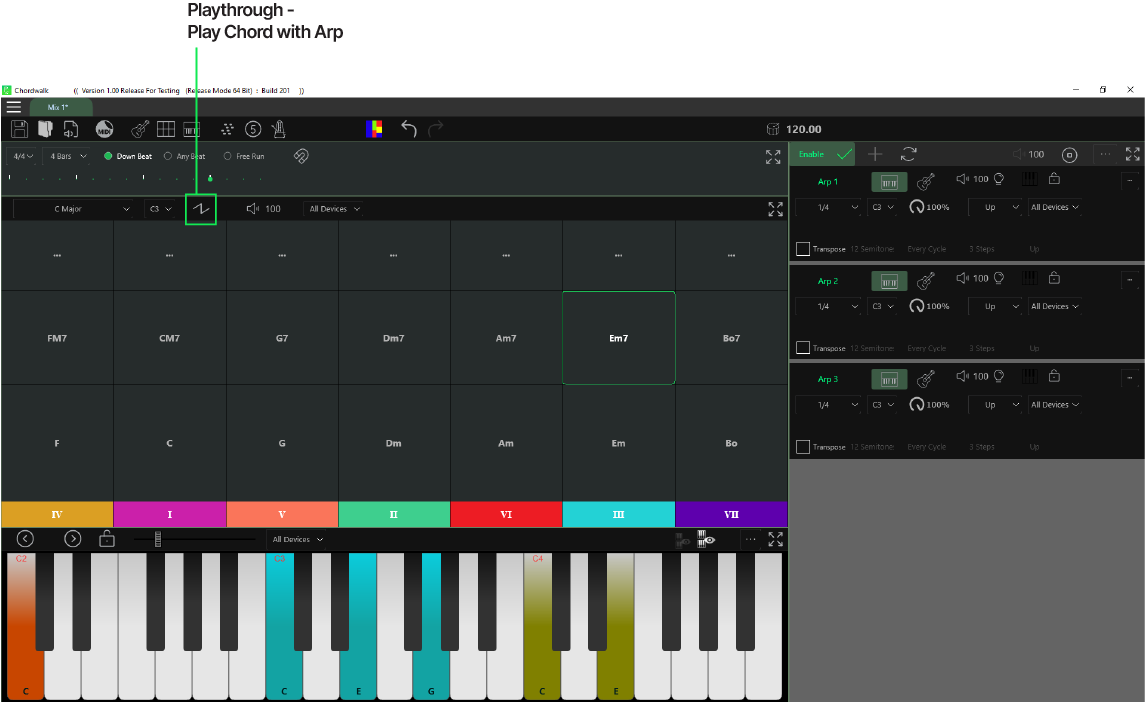
Play selected Chords with Arps
Creators need the ability to play the notes of a selected chord along with the arpeggiated notes and chord patterns in real time. This feature, called Playthrough, combines harmony chords with the melodies and solos created using arpeggios.

Transposition
Transposition generally means shifting the pitch of a note by a specific interval value. Previously, we played single-pitch arpeggios where individual notes were played in patterns and sequences within the pitch range selected in the Arpeggiator.
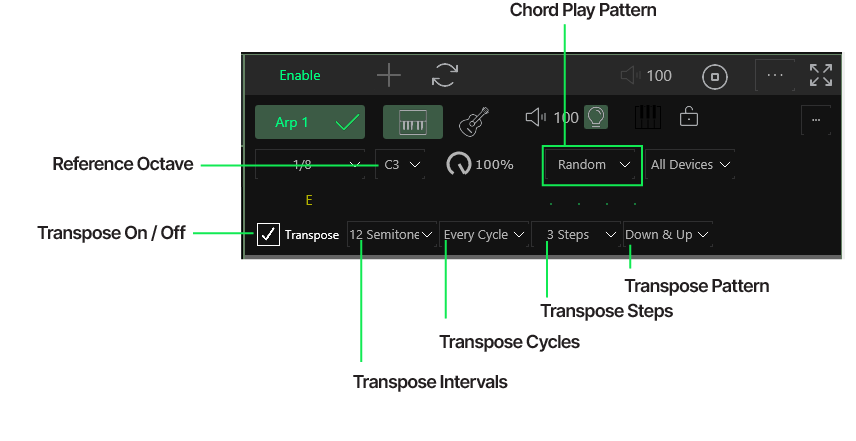
Transposing an Arpeggio
Remember, it is the arpeggio that is being transposed. If you want to add energy, movement, and variety to your arpeggio, follow these steps.

Transpose chords for Soloing
Arpeggios have been used extensively throughout the history of music. All the classic composers used them in their music. In the modern era, arpeggios are ubiquitous across all genres of music. Great pianists, guitarists, and wind and string instrumentalists incorporated arpeggios into their performances to demonstrate solo virtuosity.

Transpose Arpeggios for drum and percussion beats
We will now look at a simple set up to create inspiring drum and percussion beats with a single arpeggiator using transpositions.

Beat creation using Arpeggios
GarageBand or any quality DAW will have drums, percussion and effect sounds mapped to specific MIDI notes in the lower octave ranges. In most cases, these DAWs conform to the General Midi Standard for mapping drums, percussion, and effect sounds

Beat creation using ChordWalk Virtual Keyboard
Drum and percussion instrument sounds are triggered by playing the individual notes that are mapped to each sound. To complement Arpeggios and Full chords generating your beats, you may also trigger, in real time, any drum or percussive sound, or combination of sounds, by selecting a key or keys on the virtual piano keyboard as shown below.

Play Chord Notes simultaneously in Patterns
You can take selected notes in an arpeggio and play them simultaneously in multiple patterns and orders, adding another layer of variety and color to your creative work. You can toggle between arpeggiations and full chord patterns in real-time.

Chord Play Pattern Setup
For full chord playing, the note value in the first pattern defaults to the value set in the parent pane. Deactivated or muted notes will not be played as part of the full chord.

Beat creation using Full Chord Patterns
Playing all the notes, or a selection of notes of a chord, simultaneously allows you to play multiple Drum instrument sounds simultaneously. This also applies to any individual instrument supported in your DAW. Remember: You can toggle between Arpeggio and Full Chord selection for Beat creation in real-time.
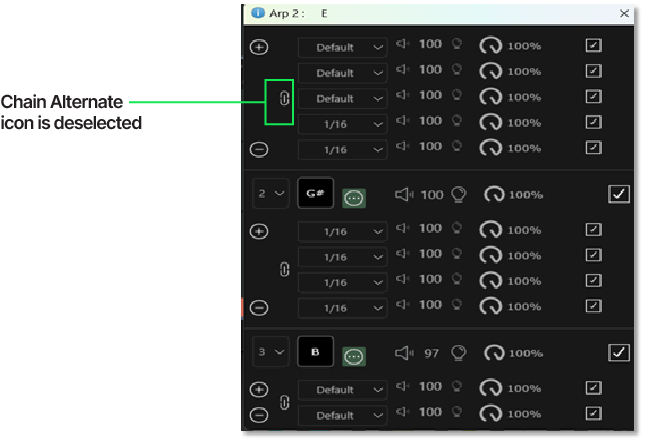
Alternate Mode Arpeggiation
The second mode is Alternate Mode. When the Chain/Alternate icon is deselected, the arpeggiator will play only one note step within the expanded note area in descending order, before moving to the next higher note order position.

Chain mode
Two mode selections are available, allowing you to change the playing cycles for the individual note flavors. The first mode is Chain Mode. When a note has the Chain/Alternate icon selected, the Arpeggiator will play all active notes within the pane before moving to the next Note Order position.

Recording Numa Player with ChordWalk using GarageBand
Numa Player does not provide a recording facility. Here, we will show you how to record third-party instruments to a track in GarageBand.

ChordWalk running on an iPad or iPhone connected with another iPad or iPhone running Garageband, Cubasis or any DAW
Here, we will discuss ChordWalk running as a Remote Creation Surface on an iPad connected with Garageband, Cubasis or any DAW running on another iPad.

ChordWalk, as a creative surface running on an iPad connected with a Mac running any DAW
Let's discuss running ChordWalk as a Remote Creation Surface on an iPad connected to any DAW running on an Apple Mac. This setup lets you simultaneously change selections, adjustments, and controls in both ChordWalk and your DAW interactively and in real-time, making it a game-changer for creators and performers.

Connecting an iPad/ iPhone to a USB MIDI-enabled Device / Keyboard
You can connect ChordWalk to any selected USB MIDI Play Devices to play simultaneously with ChordWalk locally on an iPad, iPhone, or Mac.

ChordWalk as a Creative Control surface running on an iPad, or iPhone, connected with a DAW running on a Windows PC
You can control chords, arpeggiator, and virtual instrument selections, settings, and adjustments in ChordWalk while simultaneously making adjustments in the DAW components, all interactively and in real-time.